How to restore AWS RDS DB from an existing snapshot?

  1. Sign in to the AWS Management Console and open the Amazon RDS console at https://console.aws.amazon.com/rds/.
  2. In the navigation pane, choose Snapshots.
  3. Choose the DB snapshot that you want to restore from.
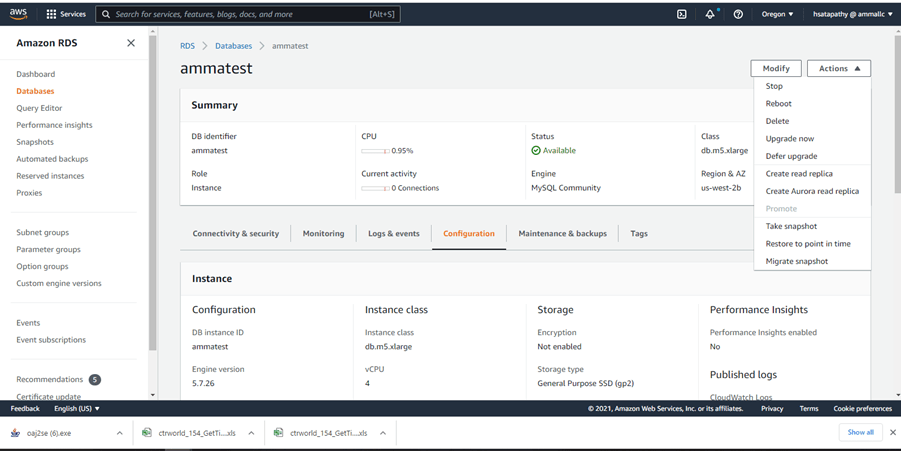
  4. For Actions, choose Restore snapshot.
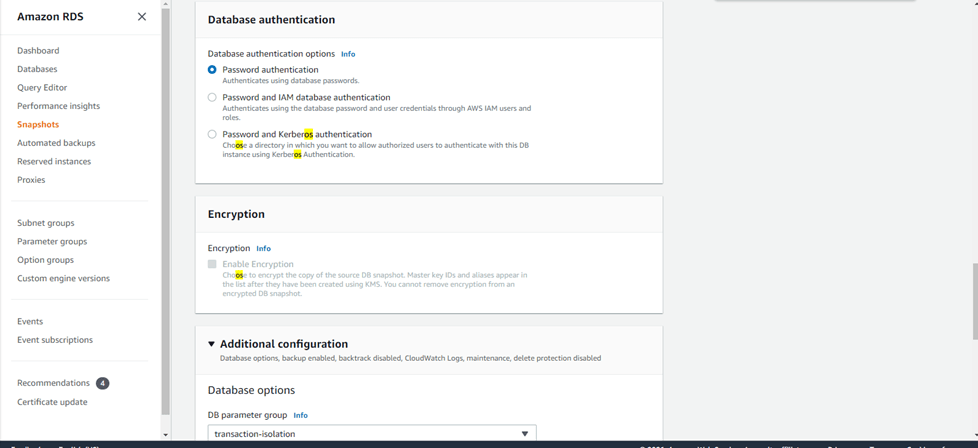
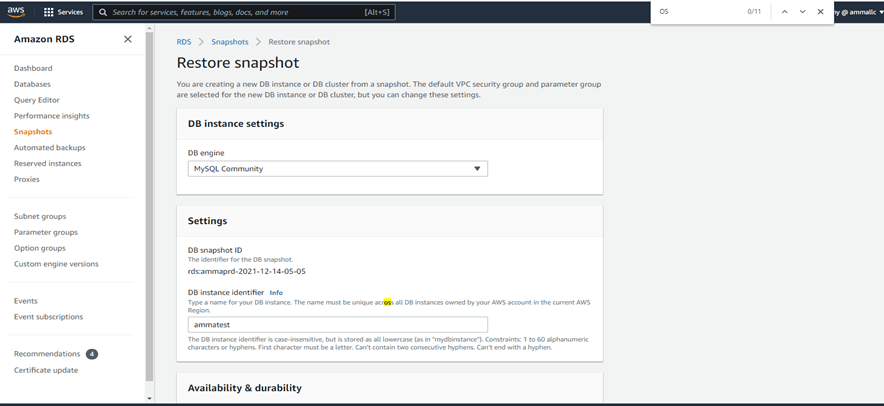
  5. On the Restore snapshot page, for DB instance identifier, enter the name for your restored DB instance

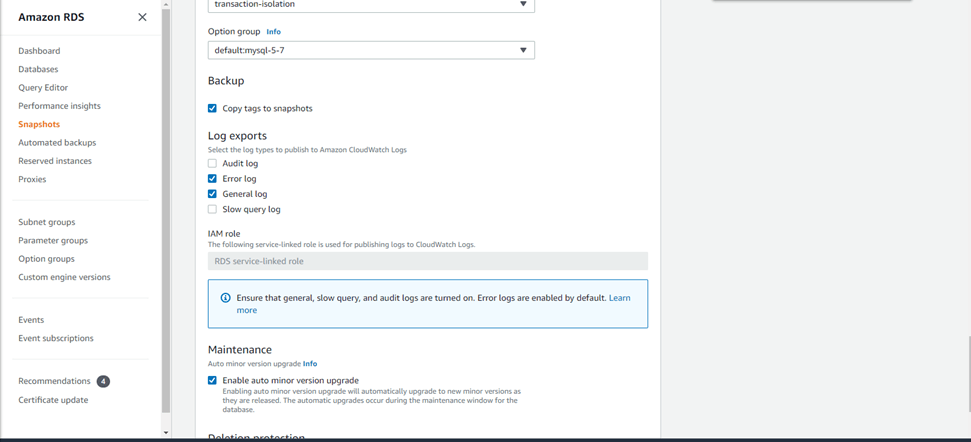
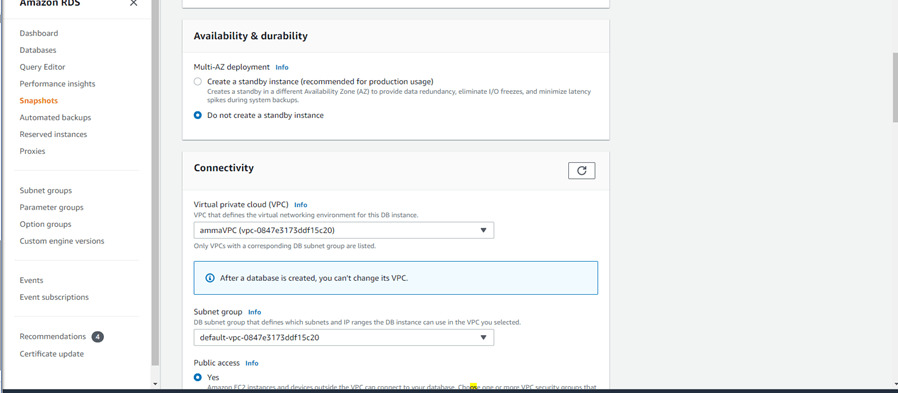
6. Specify other settings as needed

7. Choose Restore DB instance.

Reference: https://docs.aws.amazon.com/AmazonRDS/latest/UserGuide/USER_RestoreFromSnapshot.html

How To Run SQL Tuning Advisor For A Sql_id

Suppose the sql id is – 87s8z2zzpsg88

1. Create Tuning Task
DECLARE
l_sql_tune_task_id VARCHAR2(100);
BEGIN
l_sql_tune_task_id := DBMS_SQLTUNE.create_tuning_task (
sql_id => '87s8z2zzpsg88',
scope => DBMS_SQLTUNE.scope_comprehensive,
time_limit => 500,
task_name => '87s8z2zzpsg88_tuning_task11',
description => 'Tuning task1 for statement 87s8z2zzpsg88');
DBMS_OUTPUT.put_line('l_sql_tune_task_id: ' || l_sql_tune_task_id);
END;
/

2. Execute Tuning task:
EXEC DBMS_SQLTUNE.execute_tuning_task(task_name => '87s8z2zzpsg88_tuning_task11');

3. Get the Tuning advisor report.
set long 65536
set longchunksize 65536
set linesize 100
select dbms_sqltune.report_tuning_task('87s8z2zzpsg88_tuning_task11') from dual;

https://f92ac6a46068bf67c268d722b9e6cb18.safeframe.googlesyndication.com/safeframe/1-0-38/html/container.html

4. Get list of tuning task present in database:

We can get the list of tuning tasks present in database from DBA_ADVISOR_LOG

SELECT TASK_NAME, STATUS FROM DBA_ADVISOR_LOG WHERE TASK_NAME ;

5. Drop a tuning task:
execute dbms_sqltune.drop_tuning_task('87s8z2zzpsg88_tuning_task11');

What if the sql_id is not present in the cursor , but present in AWR snap?

SQL_ID =24pzs2d6a6b13

First we need to find the begin snap and end snap of the sql_id.

select a.instance_number inst_id, a.snap_id,a.plan_hash_value, to_char(begin_interval_time,'dd-mon-yy hh24:mi') btime, abs(extract(minute from (end_interval_time-begin_interval_time)) + extract(hour from (end_interval_time-begin_interval_time))*60 + extract(day from (end_interval_time-begin_interval_time))*24*60) minutes,
executions_delta executions, round(ELAPSED_TIME_delta/1000000/greatest(executions_delta,1),4) "avg duration (sec)" from dba_hist_SQLSTAT a, dba_hist_snapshot b
where sql_id='&sql_id' and a.snap_id=b.snap_id
and a.instance_number=b.instance_number
order by snap_id desc, a.instance_number;

From here we can get the begin snap and end snap of the sql_id.

begin_snap -> 235
end_snap -> 240

1. Create the tuning task:

DECLARE
  l_sql_tune_task_id  VARCHAR2(100);
BEGIN
  l_sql_tune_task_id := DBMS_SQLTUNE.create_tuning_task (
                          begin_snap  => 235,
                          end_snap    => 240,
                          sql_id      => '24pzs2d6a6b13',
                          scope       => DBMS_SQLTUNE.scope_comprehensive,
                          time_limit  => 60,
                          task_name   => '24pzs2d6a6b13_AWR_tuning_task',
                          description => 'Tuning task for statement 24pzs2d6a6b13  in AWR');
  DBMS_OUTPUT.put_line('l_sql_tune_task_id: ' || l_sql_tune_task_id);
END;
/

2. Execute the tuning task:

EXEC DBMS_SQLTUNE.execute_tuning_task(task_name => '24pzs2d6a6b13_AWR_tuning_task');

3. Get the tuning task recommendation report

SET LONG 10000000;
SET PAGESIZE 100000000

SET LINESIZE 200
SELECT DBMS_SQLTUNE.report_tuning_task('24pzs2d6a6b13_AWR_tuning_task') AS recommendations FROM dual;
SET PAGESIZE 24
Query to find runtime of a concurrent program

The query works in both Rel 12 and 11i.

——————————————————————————-

— Query to find runtime for a concurrent program

——————————————————————————-

SELECT /*+ rule */

       rq.parent_request_id                   “Parent Req. ID”,

       rq.request_id                          “Req. ID”,

       tl.user_concurrent_program_name        “Program Name”,

       rq.actual_start_date                   “Start Date”,

       rq.actual_completion_date              “Completion Date”,

       ROUND((rq.actual_completion_date –

           rq.actual_start_date) * 1440, 2)   “Runtime (in Minutes)”      

  FROM applsys.fnd_concurrent_programs_tl  tl,

       applsys.fnd_concurrent_requests     rq

 WHERE tl.application_id        = rq.program_application_id

   AND tl.concurrent_program_id = rq.concurrent_program_id

   AND tl.LANGUAGE              = USERENV(‘LANG’)

   AND rq.actual_start_date IS NOT NULL

   AND rq.actual_completion_date IS NOT NULL

   AND tl.user_concurrent_program_name = ‘Autoinvoice Import Program’  — <change it>

   — AND TRUNC(rq.actual_start_date) = ‘&start_date’  — uncomment this for a specific date

 ORDER BY rq.request_id DESC;

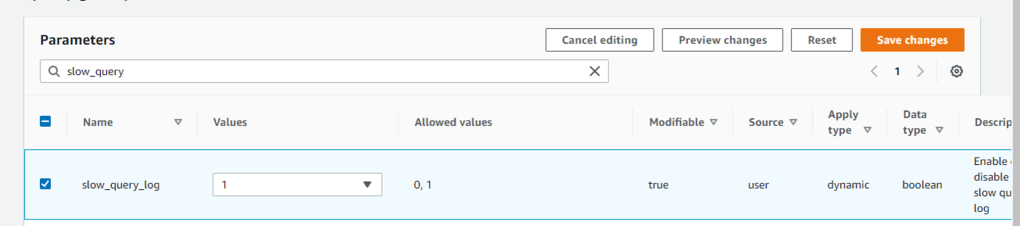
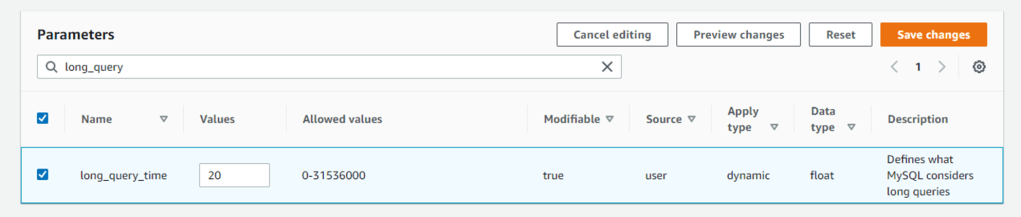
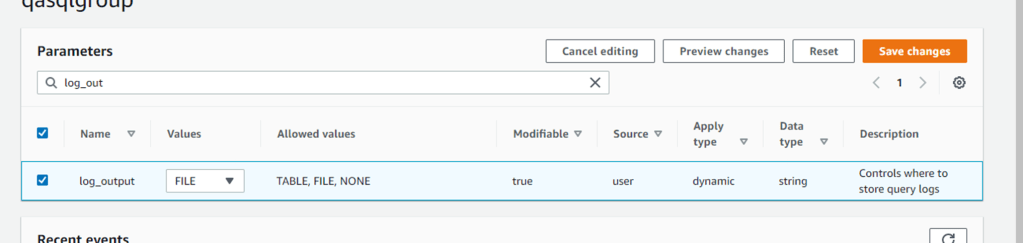
How to enable Database Logging

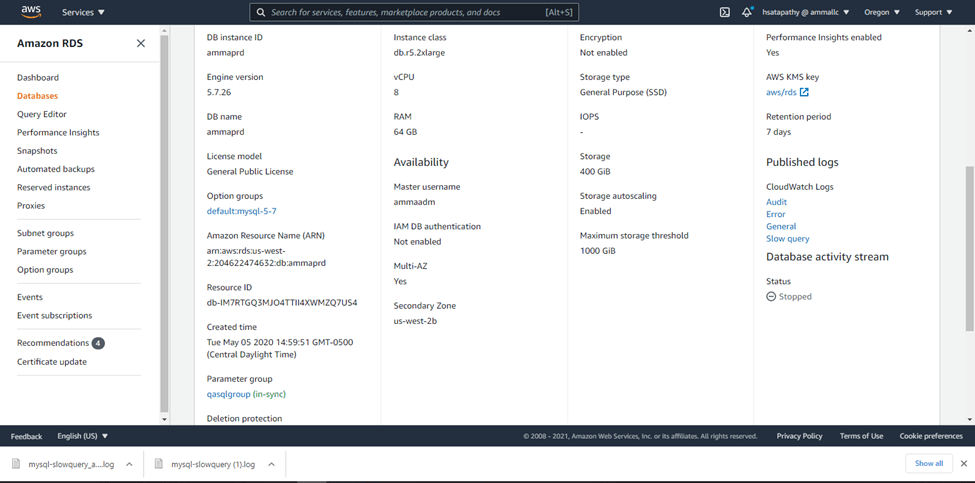
AWS console – >  RDS -> DB Instances -> ammaprd -> configuration -> parameter group(e.g. “qasqlgroup”)

Click on Edit Parameters on Top right and type in below parameters (one by one)

Set slow_query_log set to “1”

long query time set to “20”

log_output to “FILE”

Click “Tick Mark” on the chosen parameters on the left “Save Changes” on Top right

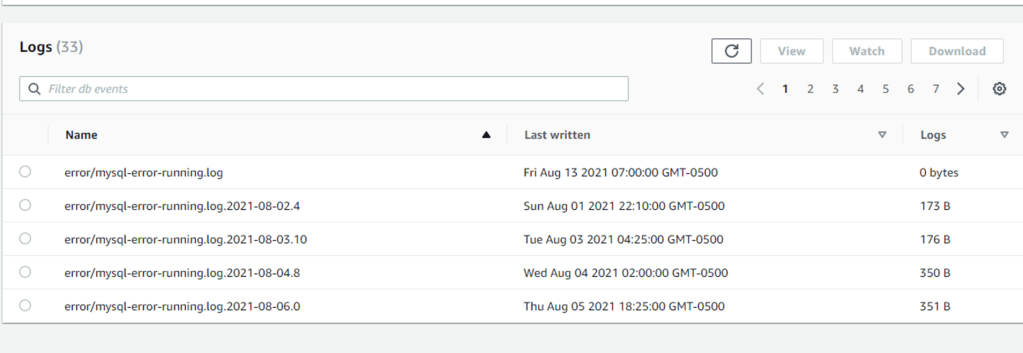
You will see the slow query log on AWS console -> RDS – > AMMAPRD -> Logs and events

Incase, you have to reset theses values, please click “Tick Mark” on the needed parameter on the left and then click on “Reset” on Top right

Set up an SSH tunnel to access the Oracle WLS Administration Console

The post introduces steps to set up an SSH tunnel for Oracle® WebLogic Server (WLS) Administration Console access in version R12.2.

Use SSH tunneling

STEP 1: ADD THE PRIMARY WEBLOGIC ADMINISTRATION SERVER

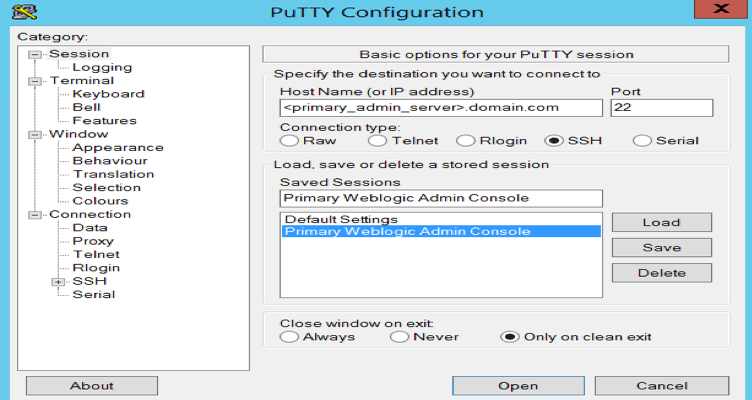
  1. Open a PuTTY session.
  2. Enter the host information in the Host Name (or IP address) field, replacing <primary_admin_server> with the primary application WebLogic Administration node, where you are running the WLS Administrator.

3. Add a saved name to identify the connection for access easily and click Save.

STEP 2: CONFIGURE THE TUNNEL

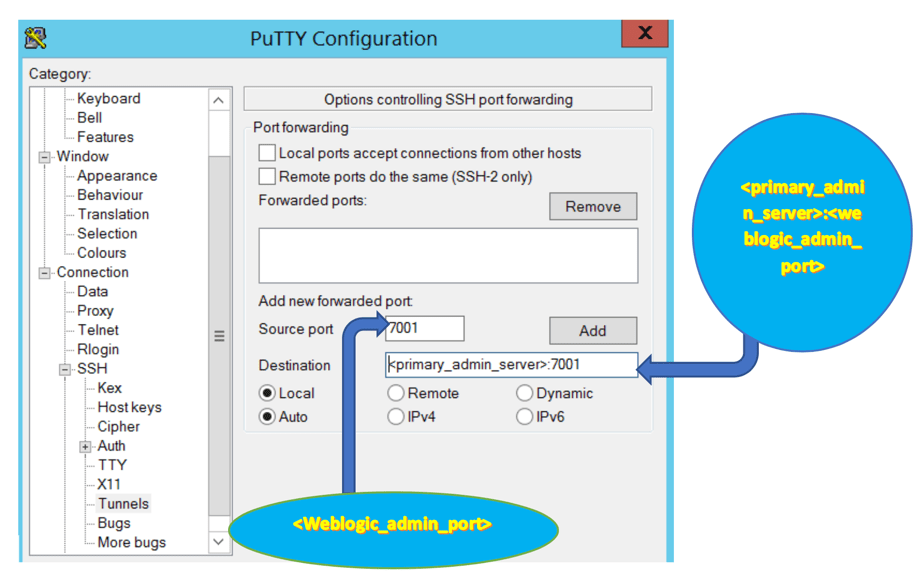
  1. In the left-panel, click SSH > Tunnels and add local port and destination <primary_admin_server>:<Weblogic_Admin_port> and click Add.

2. Click Add to open the PuTTY configuration window.

STEP 3: SAVE THE SETTINGS

In the left-panel, click Session and click Save.

STEP 4: VALIDATE THE TUNNELING

  1. Login to PuTTY as the application OS user to your primary administration server.
  2. Open a web browser to access http://localhost:7001/console.

After you set up SSH tunneling from your UNIX or Windows® client, you can securely access the WLS Administration Console and Fusion Middleware Control. Launch a browser from your client and connect to the administrative URLs.

On a Windows client, you can use either one of the following SSH executables:

  • Windows 10: OpenSSH ssh from Microsoft: If you use ssh, follow the syntax for ssh shown in the preceding example.
  • Windows 7: plink from PuTTY: If you use plink, use the following command: C:\> plink.exe -N -L localhost:<WLS_admin_port>:<primary-apptier>:<WLS_admin_port> <OS_user>@<primary-apptier> For example, if the Oracle WebLogic Server Administration port is 7001, and the OS user is oracleuser, use the following command: C:\> plink.exe -N -L localhost:7001:<primary-apptier>:7001 oracleuser@<primary-apptier>

Conclusion:

SSH tunneling helps you access the WLS Administration console from a local Windows device, where EBS restricted all access to the WLS Administration server for other devices. You don’t need any additional software other than PuTTY to set up the SSH tunnel.

Reference: https://docs.rackspace.com/blog/set-up-an-ssh-tunnel-to-access-the-oracle-wls-administration-console/